The Adyen payment terminals support many features beyond the basic transactions of making, refunding, and canceling payments. Some features require additional configuration. You can do this in your Customer Area or using API calls. In some cases you need to contact our Support Team to complete the configuration. Here we explain the effect of configuring features at different levels, and where you can find feature settings in your Customer Area.

Requirements

Before you begin, take into account the following requirements.

Inheritance of settings

You can define terminal settings at different levels. From high to low:
  • Company account level
  • Merchant account level
  • Store level
  • Terminal level
The top level, above the company level, is the Adyen level. This is known as the PSP level. You cannot define settings at PSP level. Settings at the company level apply to all terminals under the company. Settings at the merchant account level override settings inherited from the company level and apply to all terminals under the merchant account, and so on. In other words: settings defined at a certain level propagate to all terminals at and under that level. But settings defined at a lower level replace values inherited from a higher level. To manage your terminals effectively, we recommended setting configurations at the merchant account level. In your Customer Area:
  • If a setting is inherited from a higher level, that level is mentioned. For example:
  • Settings marked AdyenPspService are configured by Adyen and cannot be changed.
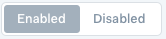
  • If a setting is enabled or disabled at a higher level, the toggle switch to enable/disable is grey. For example:

When new settings take effect

After you changed the settings for a feature, the changes take effect when a payment terminal updates its configuration during the next reboot hour. To use the new settings immediately, you can update the configuration manually.

Terminal customization, hardware features, and receipts

To access settings for terminal customization, hardware features, and receipts:
  1. Log in to your Customer Area.
  2. Switch to your merchant account.
  3. Go to In-person payments > Terminal settings. Or, to define these settings on the level of an individual terminal, go to In-person payments > Payment devices, select the Terminals tab, and then select your terminal. Some settings are only available on the terminal level.
These settings are mostly self-explanatory. You can find them under In-person payments, Customization, Hardware or Receipts. Required receipt content
You can safely add your own branding to a receipt, as described here. But be aware that you risk non-compliance when you modify the content of a receipt. Refer to Generate receipts.

Payment features

In a Terminal API integration the availability of features depends on whether your POS app is compatible with the feature. You can find most of these settings under In-person payments > Terminal settings > Payment features.

Payment methods

The Adyen payment terminals accept global credit cards and Maestro out-of-the-box. If you also want to accept local credit or debit cards, wallets, or gift cards, you need to add these payment methods to your account. In your Customer Area, you can find payment methods under Settings > Payment methods. For an overview of supported payment methods and instructions, see:

Integrations

You can find most of these settings under In-person payments > Terminal settings > Integrations.

Connectivity

When connecting the terminal to your network, follow the instructions in the user guide for your terminal model.

Advanced features

In consultation with your Adyen implementation manager or account manager, some features are available for custom implementation. In a Terminal API integration the availability of features depends on whether your POS app is compatible with the feature.

See also