

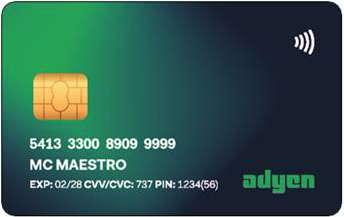
 This Adyen test card has several “applications” programmed onto it that each simulate a specific card brand (payment method), language, country/region, and currency, and various Cardholder Verification Methods (CVM).
It supports contactless, offline, and installment transactions. When making test payments with this card:
- To test a specific application on the test card, use the corresponding currency in your payment request.
- To test different CVMs, use different combinations of transaction amount and currency.
- To test declined payments, use the last three digits of the transaction amount.
Card applications
Use the table below to see which application on the test card corresponds with the scenario you want to test. To try a particular application, use the corresponding currency in your payment request. You can also select an application on the terminal: when the terminal shows Present card, insert the card and select the application on the display.
Application mc pt bra brl allows you to test Brazil installment payments.
Testing CVMs
When you make payments with the test card, a CVM is triggered based on the test card’s CVM list, test card application, amount, and currency. This is the CVM list for the test card: Amount threshold- See the table below. To trigger a particular CVM with a dynamic currency conversion (DCC) transaction, make sure the amount is above the threshold after the conversion.
- CVM code: if this CVM is unsuccessful, try the next CVM.
- CVM type: depends on the test card application. See table below.
- CVM condition: the CVM type applies if the transaction is in the currency of the test card application and the amount is above the threshold.
- CVM code: if this CVM is unsuccessful, fail the cardholder verification.
- CVM type: depends on the test card application. See table below.
- CVM condition: the CVM type always applies.
For online PIN, with the card inserted in the card reader, the test system will accept any PIN code you enter.
For offline PIN, with the card inserted in the card reader, the transaction will be declined if you enter an invalid PIN.
If you are testing a contactless transaction, you will be asked to enter a PIN when the transaction amount is above the contactless reader limit specific for the country/region the terminal is located in.
You can find the latest limits in your Customer Area under In-person payments > Terminal settings > Payment features > Limits > Contactless CVM limit.
Testing offline transactions
To test offline EMV transactions:- Contact our Support Team and ask them to configure the chip floor limit and offline refund limit to the values you want.
- Force an internet connection failure, for example by unplugging the Ethernet cable.
- Do your test transactions. The test card enforces the offline limits configured in your test Customer Area.
Simulating declined payments
In general, test payments are approved. To simulate declined payments, you need to change the last three digits of theRequestedAmount that you specify in the payment request.
For example, to test how your integration responds when the issuer suspects fraud, specify an amount with 151 as the last three digits, such as 101.51 or 21.51.
In a classic library integration you can run the same simulations, but the response returns a generic DECLINED_ONLINE posResultCode in most cases. To verify the details of a simulation, you can:
- Check the transaction in the Customer Area.
- Check the raw response in the notification for the transaction.
- The last three digits of the amount to specify for simulating a specific response.
- The
Result,ErrorCondition,AdditionalResponse.refusalReason, andAdditionalResponse.messagefrom the Terminal API response.
refusalReason and message are included for additional insight, and should not be coded against. For instructions on how to handle declines, see Declined payments.
Raw responses
In our back end, we receive the payment response from card schemes and issuers. In case of a declined payment, we map the raw response to a combination ofErrorCondition, refusalReason, and message and return this in the Terminal API response.
Raw responses provide additional information, but you do not need to test them because you should not code against them. If you base your failure-handling logic on raw responses, that might break your integration because acquirers and issuers sometimes change their raw responses without notice.
If you still want to receive the raw response, you can:
- Set up standard webhooks with the additional setting Add Raw Acquirer Result enabled.
- For a Terminal API integration, configure receiving raw responses.